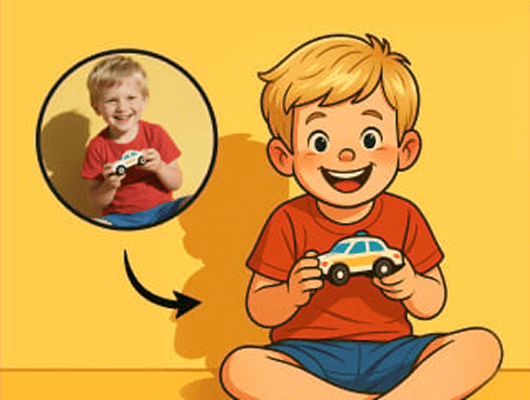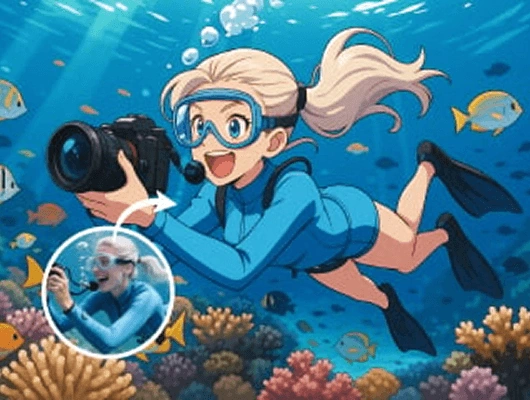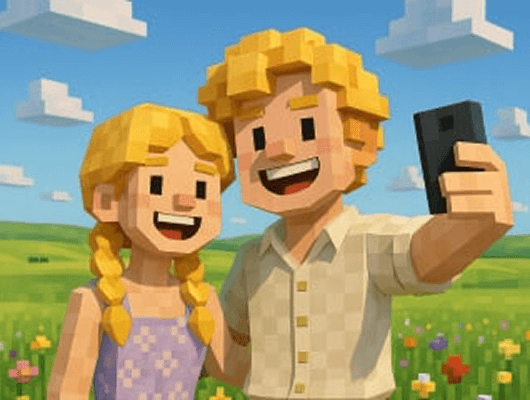
Image to Image AI:
Edit and Restyle Your Images

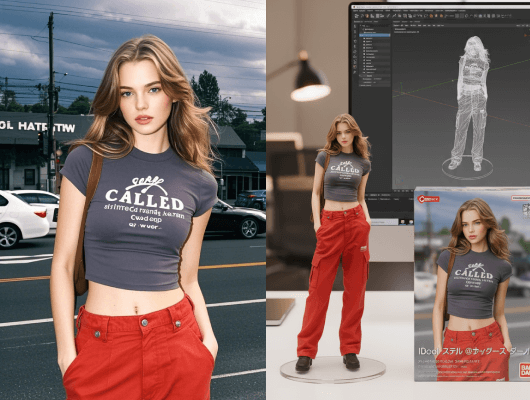
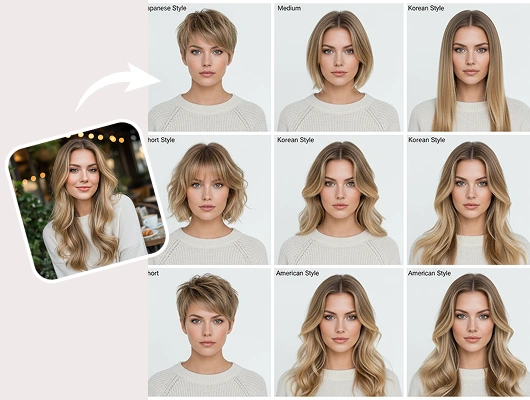
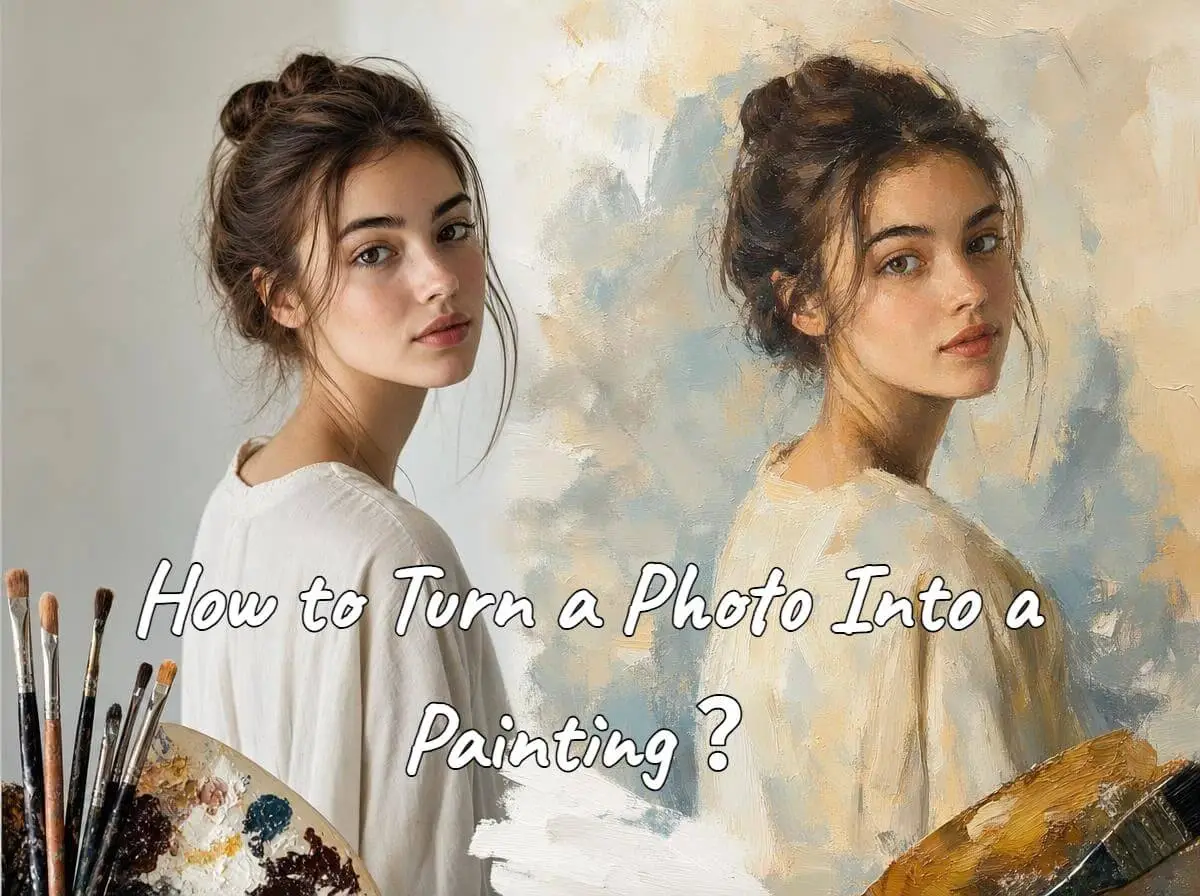
Start with a photo, product shot, sketch, or artwork. Tell ChatArt what to keep and what to change, choose an AI model, and generate the result you need.

Image to Image Supports GPT Image 2
Model

Reference Image

Upload Images
1-16 images
Uploading...
Uploaded reference image preview
0 / 5000
Image Ratio
Definition
Image Quality

Generate

Edit an Existing Image Without Starting Over

Upload a reference image and describe what should look different. ChatArt uses the original image as visual context while generating the edited result.

Change image lighting, color, and mood

Change the Lighting, Color, or Mood

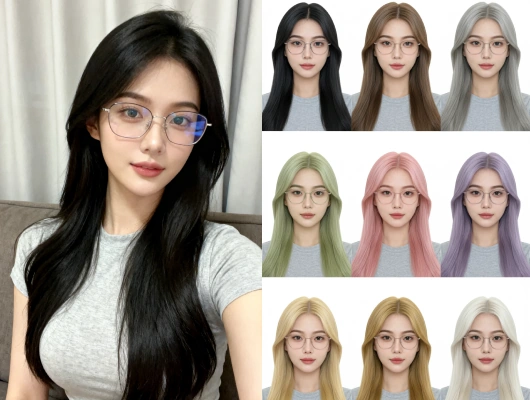
Brighten a dark photo, shift the color palette, or give the scene warmer, softer, or more dramatic lighting.

Change What's in the Image

Update clothing or accessories, adjust how a product looks, or add, remove, and replace visible objects.

Change clothing, products, or objects in an image
Apply a new image style

Apply a Different Style

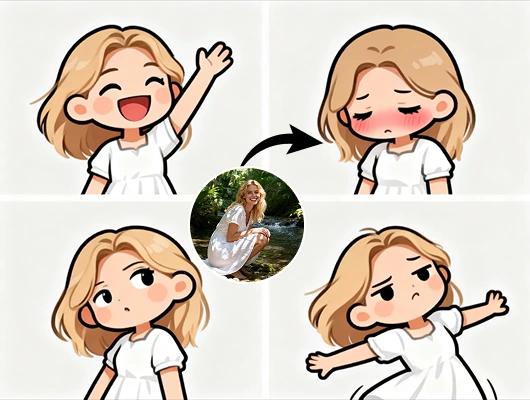
Turn a photo or sketch into an editorial, cinematic, illustrated, anime, or another clearly described style.

Change the Background or Setting

Place a portrait, product, or character in a studio, outdoor scene, or another setting described in your prompt.

Change an image background

Try Different AI Image Models Without Switching Tools

Use GPT Image 2, Nano Banana, Seedream, Flux, and other models in the same workflow. Try the same edit with another model and compare the results before choosing one.

Edit an Image in Three Steps

Upload a reference image, describe what to keep and change, then choose a model and generate.

Upload a reference image

Step 1. Upload Your Starting Image

Add a JPG or PNG reference image up to 30MB.

Describe image changes

Step 2. Describe the Result You Want

Explain what to keep, what to change, and the style or setting you want.

Generate an edited image

Step 3. Choose a Model and Generate

Select an image model and the available output settings, then generate your image.

Edit Existing Images for New Projects

Keep what already works, and change only what the new project needs.

Image prepared for a social post

Prepare an Image for Your Next Social Post

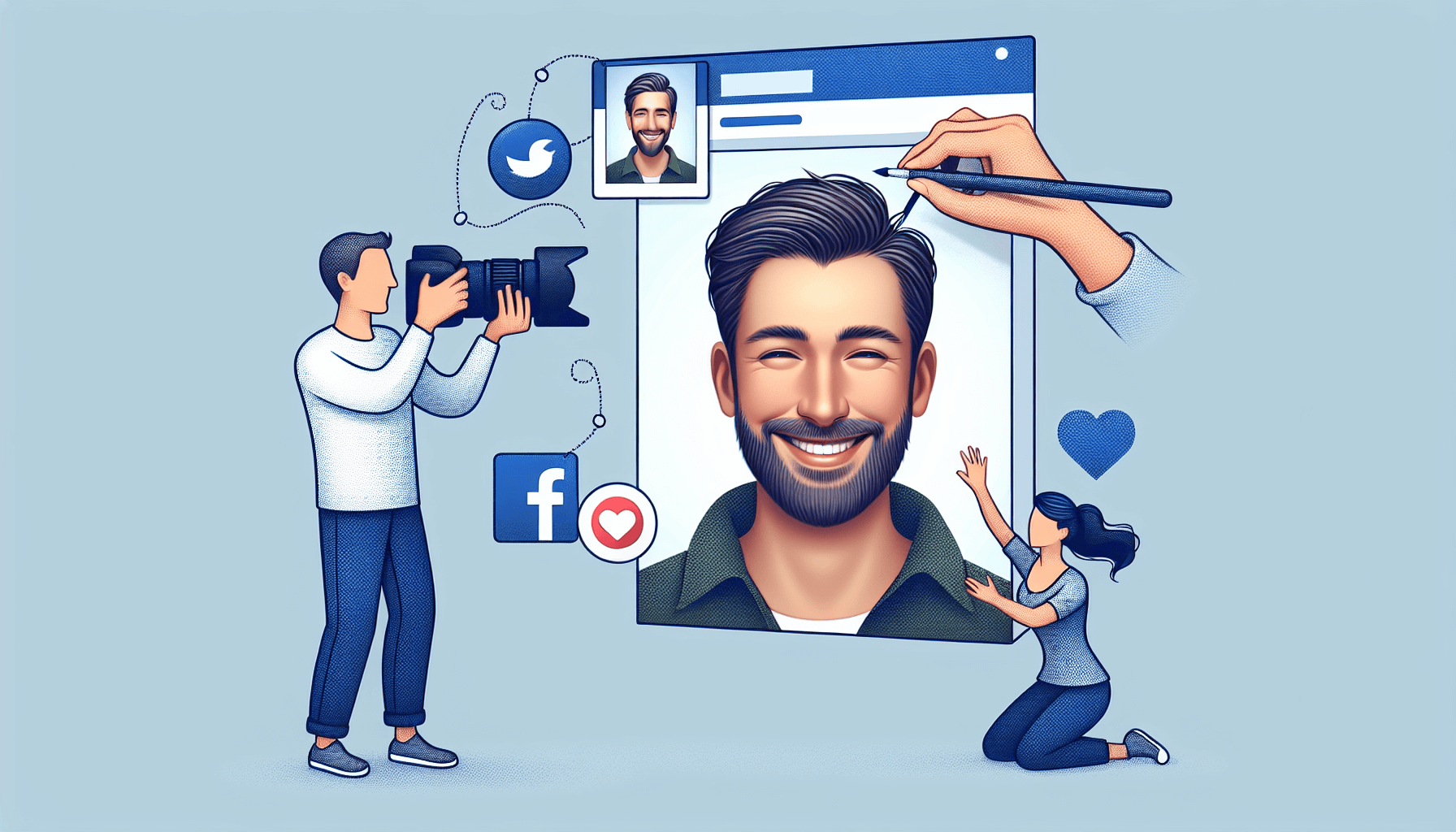
Update a portrait or branded image so it fits a new post, cover, or recurring series.

How People Use ChatArt for Everyday Image Edits

Experiences with updating portraits, blog covers, and other everyday images.

starstarstarstarstar

I liked the portrait, just not the background for that post. I described a better one in ChatArt, and the result was much closer to what I needed.

starstarstarstarstar

I use it for blog covers when the concept works but the look does not. I can try a different style or setting before settling on the final cover.

starstarstarstarstar

I asked for warmer light and a cleaner background, then tweaked the prompt once. That was much easier than learning a full photo editor.

starstarstarstarstar

If the first result feels off, I switch models. Some stay closer to the original while others push the style further, so I can compare before choosing.

Transform an Image Now

FAQ

Choose the right workflow, prepare your image, and know what to try when a result misses the mark.

When should I use image-to-image instead of text-to-image?

Use image-to-image when you already have a subject, composition, or detail you want the model to reference. Use text-to-image when you want to create from a written idea without starting from an existing visual.

What kind of starting image works best?

Choose an image where the subject and the details you care about are easy to see. A blurry, very small, or heavily cropped image gives the model less visual information to work with.

How can I keep the subject closer to the original?

Name the exact features that should stay recognizable, such as a person's appearance, a product shape, or a character's clothing. Then describe only the parts you want to change. If the result still moves too far, make the instruction more specific or try another model.

Can I ask ChatArt to change only one part of an image?

You can request a targeted edit, such as changing the background, clothing, lighting, or one object. Because this is generative editing, nearby details may also change. Review the result and refine the prompt or generate again when needed.

What should I do if the result changes too much?

Ask for fewer changes at one time, repeat the details that should stay recognizable, and remove instructions that compete with each other. You can also try the same image and prompt with another available model.

How should I choose an AI image model?

There is no single model for every edit. Try the same reference image and prompt with the available models, then compare which result best matches what you need. Available output settings are shown after you select a model.
What file types and sizes can I upload?

The current Image to Image workflow supports JPG and PNG reference images up to 30MB.

Can I try ChatArt Image to Image for free?

Yes. After you register for ChatArt, your account receives free diamonds that you can use to try image generation. The diamonds required for a generation and any additional plan options are shown inside ChatArt.

Upload an Image and Make Your Edit

Describe what to keep and what to change, then generate with ChatArt.

AI image creation AI image effect AI image variation AI generated image