

Social post
Create a Surprising Twist
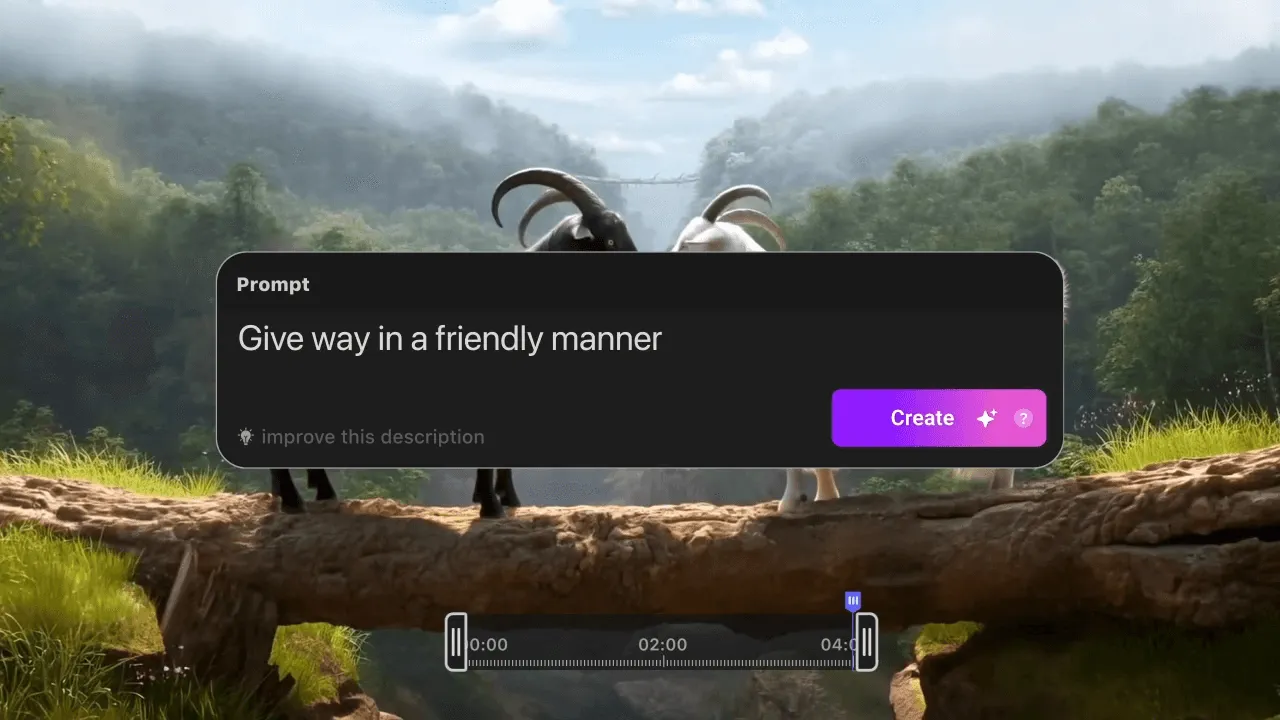
Prompt: Jump off the cliff and ride a wild goose.
Unlike looping or slow motion, AI video extension creates the next part of the scene from your clip's final frames.
These concise continuation prompts turn an existing clip into an unexpected social moment, a product reveal, or a cinematic fantasy scene.
Prompt: Jump off the cliff and ride a wild goose.
Prompt: The music freezes the environment, showcasing the headphones.
Prompt: The vehicle drives into a world of giant mushrooms.
A readable final frame and a specific prompt give the model clearer context for the continuation.
Trim the video where the subject, motion, and scene remain easy to read.
End the clip before the subject leaves the frame, becomes obscured, or blurs.
Specify the next action, camera movement, and desired ending.
Reference the existing lighting, atmosphere, and visual style in your prompt.
Upload a clip, describe its next moment, then generate and download the continuation.

Sign in, open Video Extension, and upload one MP4 or MOV file no larger than 50 MB.

Describe the next action, camera movement, and scene ending, then choose a model and extension length.

Preview the result, revise the prompt if needed, and download your selected version as an MP4.
Explore long-form generation and model examples before planning your next AI video project.
Start a new video from text or an image, or use a purpose-built generator for a specific scene.
Create videos from text or images in ChatArt's general AI video workspace.
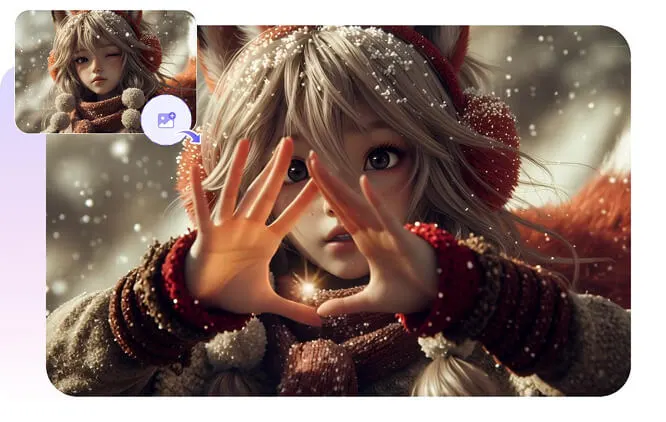
Turn a written scene into an AI video with the motion, style, and camera direction you describe.
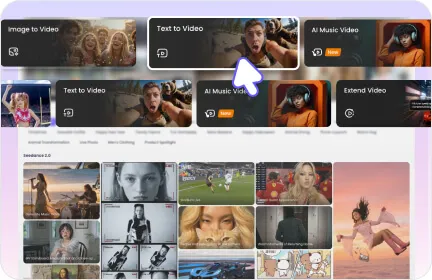
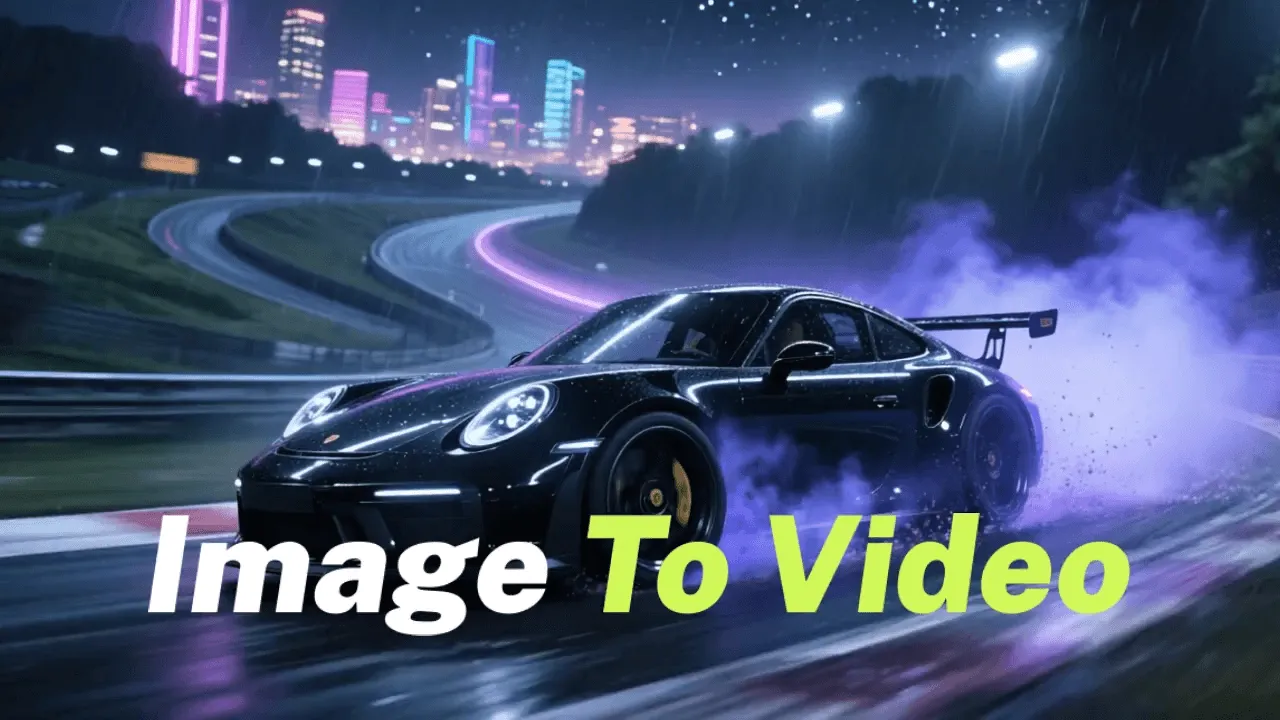
Animate a still image with the motion, camera movement, and visual style you describe.
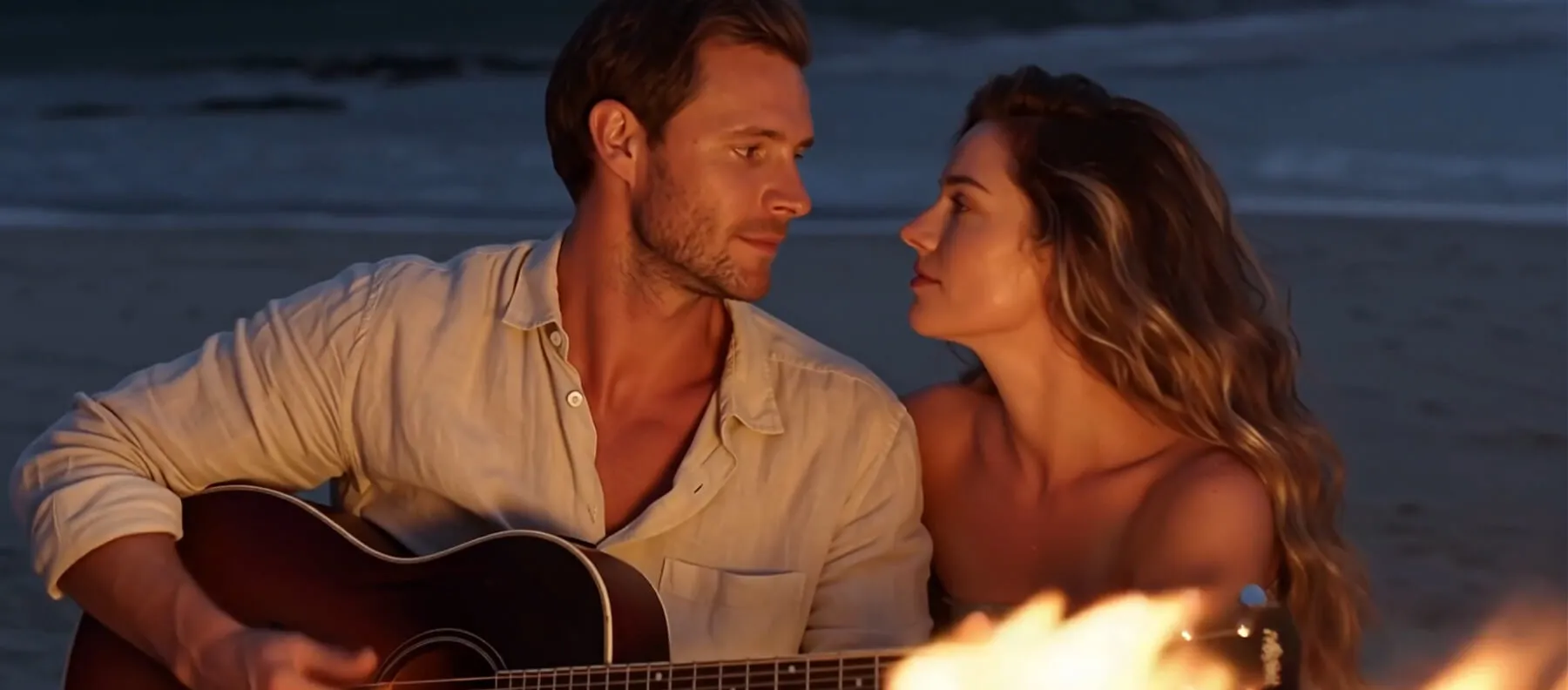
Turn two photos into an AI kissing video with guided facial and body movement.
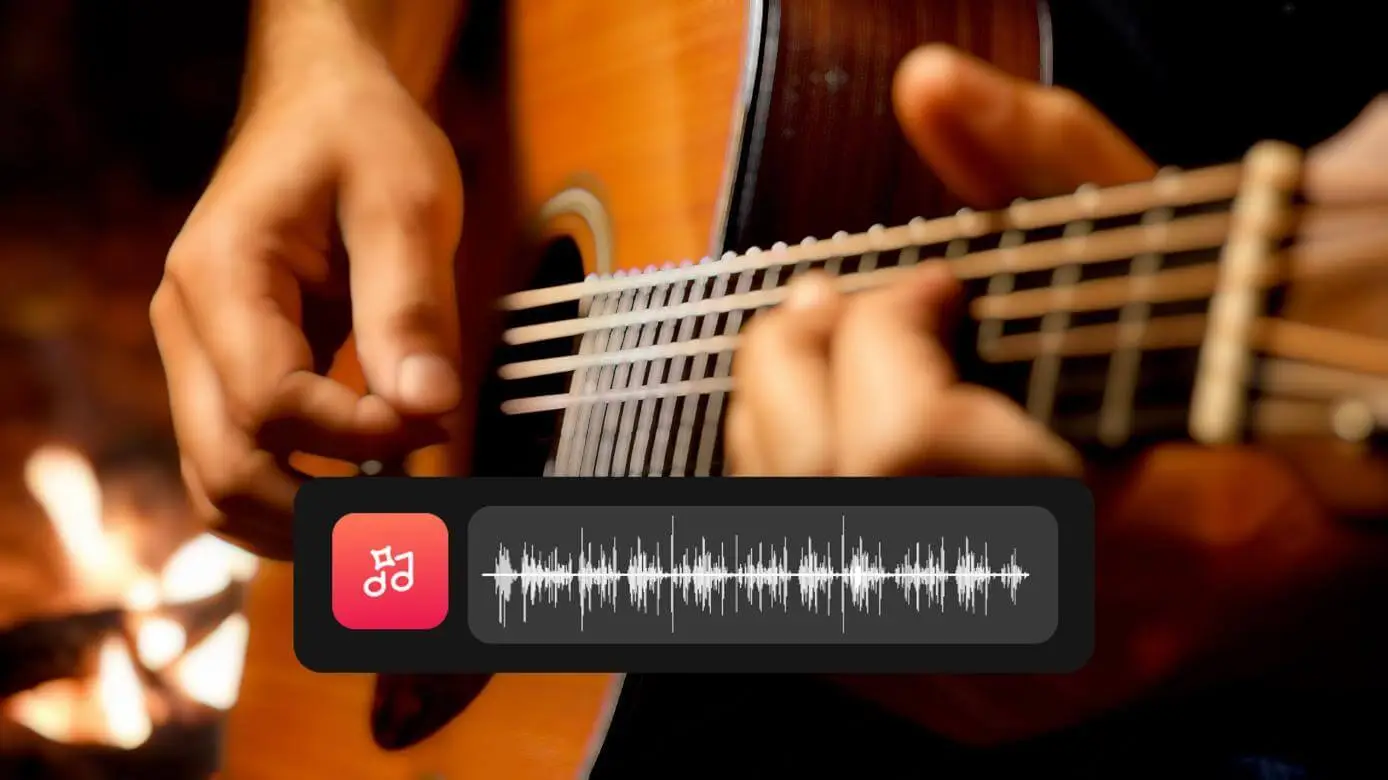
Create a music video from a song, photo, or prompt, with visuals and motion built around the track.
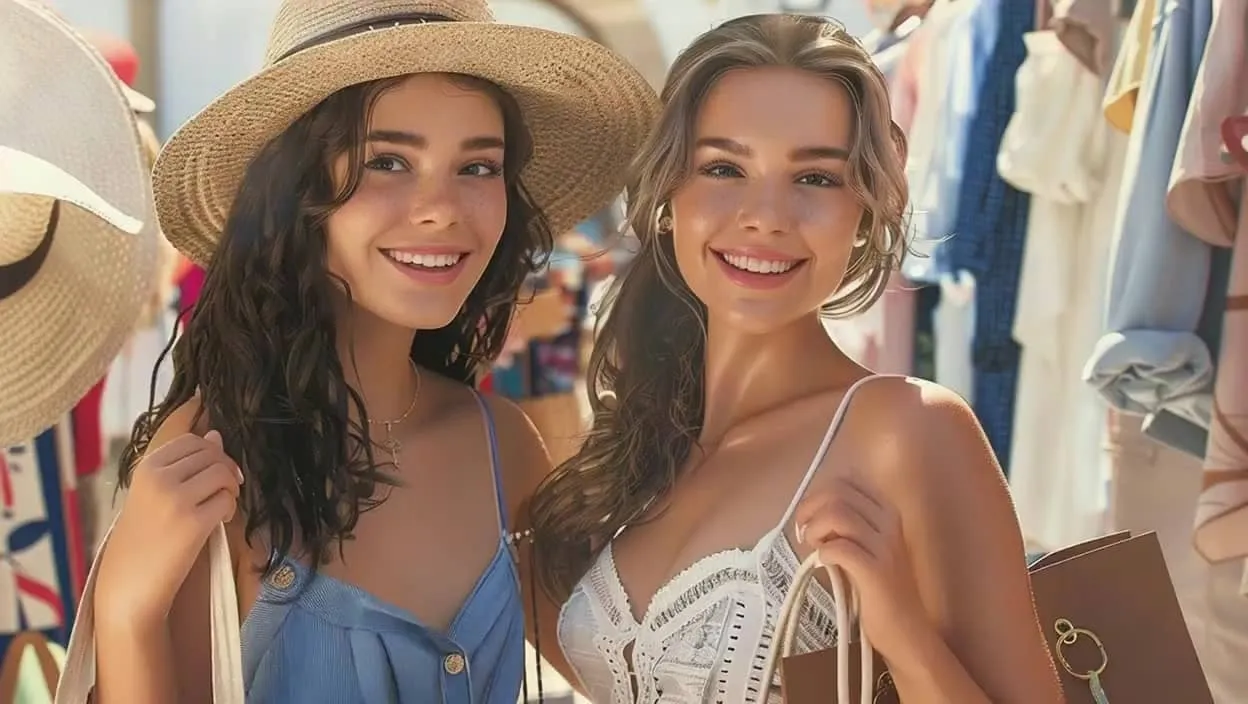
Create anime or realistic AI girl images and videos from a text prompt in ChatArt.
Learn practical ways to extend clips, compare AI video workflows, and create new footage from images.
Get practical answers about trial credits, supported files, audio, watermarks, commercial use, and generation time.
Yes, you need to sign in before generating. New users receive trial credits to try Video Extension. Credit use varies by model, extension length, and output quality.
Upload one MP4 or MOV file up to 50 MB. ChatArt exports your result as an MP4 and automatically matches the output quality to your source clip and selected model. Supported output options currently range from 360p to 4K.
Depending on the model, you can extend a video by 1 to 30 seconds in one generation. Choose a shorter continuation for a quick beat or a longer extension when the scene needs more time to develop.
Choose from Seedance 2.5, the Seedance 2.0 family, Kling 3.0, and PixVerse V6. Each model offers different duration and output options, so you can pick the one that best fits your clip.
Yes. Upload an AI-generated MP4 or MOV just like any other clip, then describe the next action or camera movement you want ChatArt to create.
No. ChatArt does not modify the audio already present in your source video.
Yes. Use a generated video as the input for a new Video Extension task, then continue extending it from the new ending.
No. ChatArt does not add a watermark to generated videos.
Yes. You can use extended videos for commercial projects. Make sure you have the necessary rights to any source video, audio, people, or other content you upload.
Generation usually takes about 1 to 10 minutes. The exact time depends on the task and model. After you click Generate, the progress bar shows an estimated completion time. You can leave the page after submitting and check the result later in History.