

Follow the Motion in Your Reference Video
Use a reference video to guide the timing, poses, gestures, and full-body movement without describing each action in a prompt.
Upload a character image and a reference video, then let ChatArt recreate the video's dance, gesture, or full-body movement with your character. Choose Kling 3.0 or Wan 2.2 to get started.
No image? Try these examples:
No video? Try these examples:
Use a person, pet, avatar, or illustration, then choose whether to keep the image background or use the reference video's scene.
Use a reference video to guide the timing, poses, gestures, and full-body movement without describing each action in a prompt.
Use a person, pet, avatar, anime character, or illustration as the performer.
Keep the character and background from your image, or place the character into the reference video's scene.
Choose a dance, gesture, or stylized action, then recreate it with your own character.
Check the subject, framing, and starting pose before you generate so the model can follow the movement more accurately.
Use a clear image that shows the upper body or full body with key features unobstructed.
Pair a full-body character with full-body motion, or use closer framing for smaller gestures. Similar aspect ratios are recommended.
Choose a reference video where one subject stays visible throughout the action.
Choose a character image whose pose and framing are close to the opening frame of the reference video for a more natural transition.
Choose a model, upload your character and reference video, then adjust the settings and generate.

Select an available AI video model, then upload the character image you want to animate.

Add a clear reference video with the dance, gesture, or body movement you want your character to follow.

Choose the available quality and scene settings, review the credit cost, and generate your AI character animation.
Use Motion Control when you have a specific movement to follow. Choose Image to Video for freer animation, or Text to Video when you want to start from a prompt.
Compare ChatArt's AI video workflows and choose the right starting point.
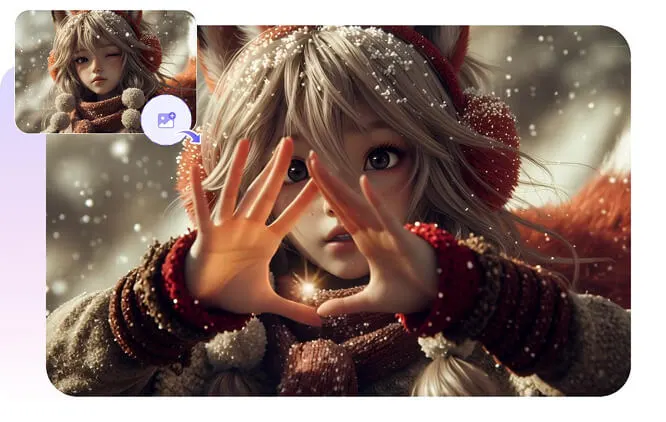
Animate an image without uploading a separate motion reference clip.
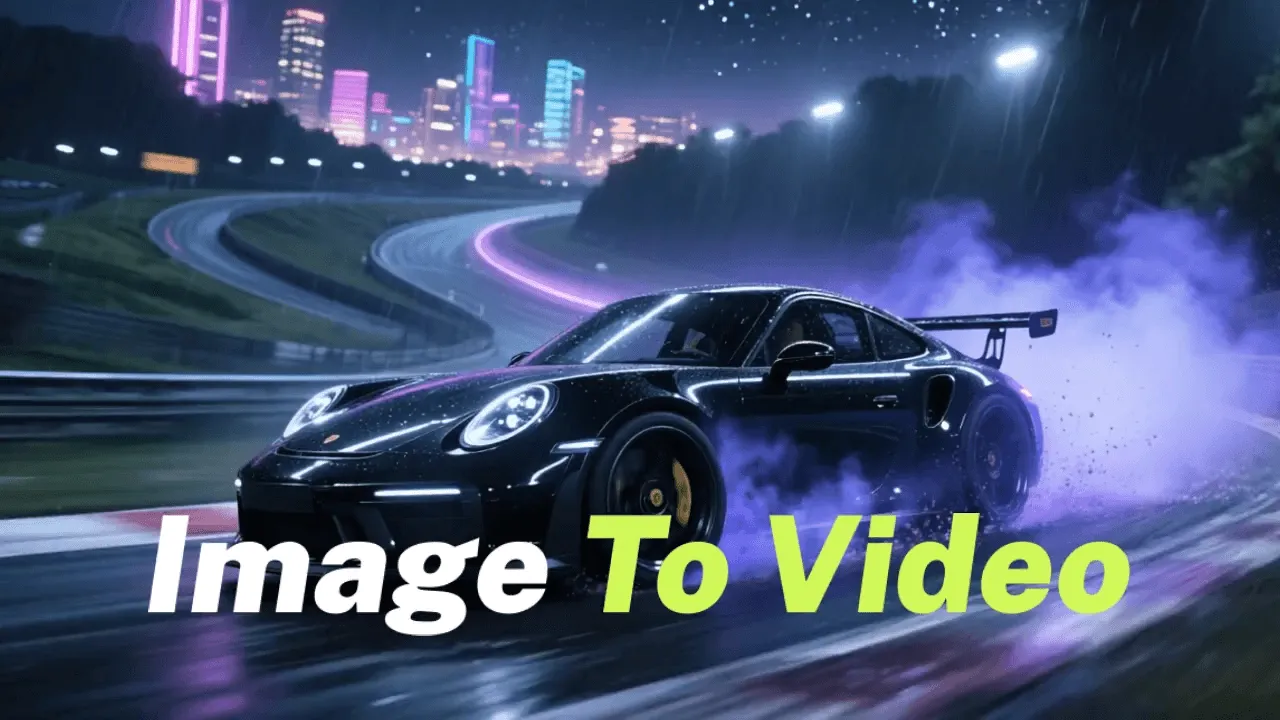
Turn a written idea into an AI-generated video without using a source image.
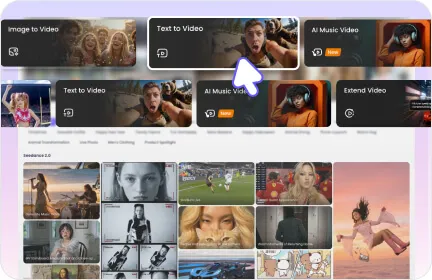
Extend an existing clip with new scenes that match its style.
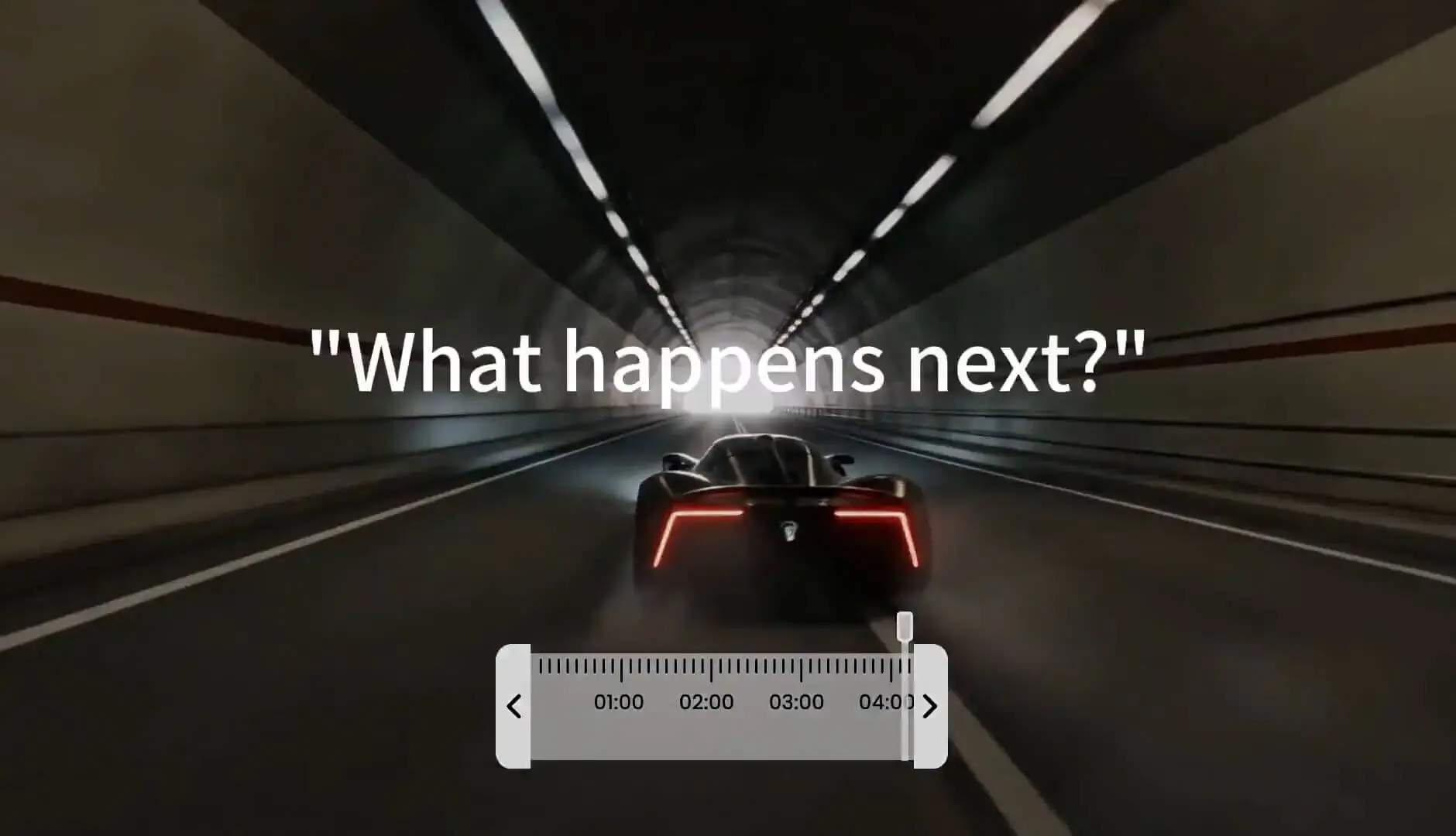
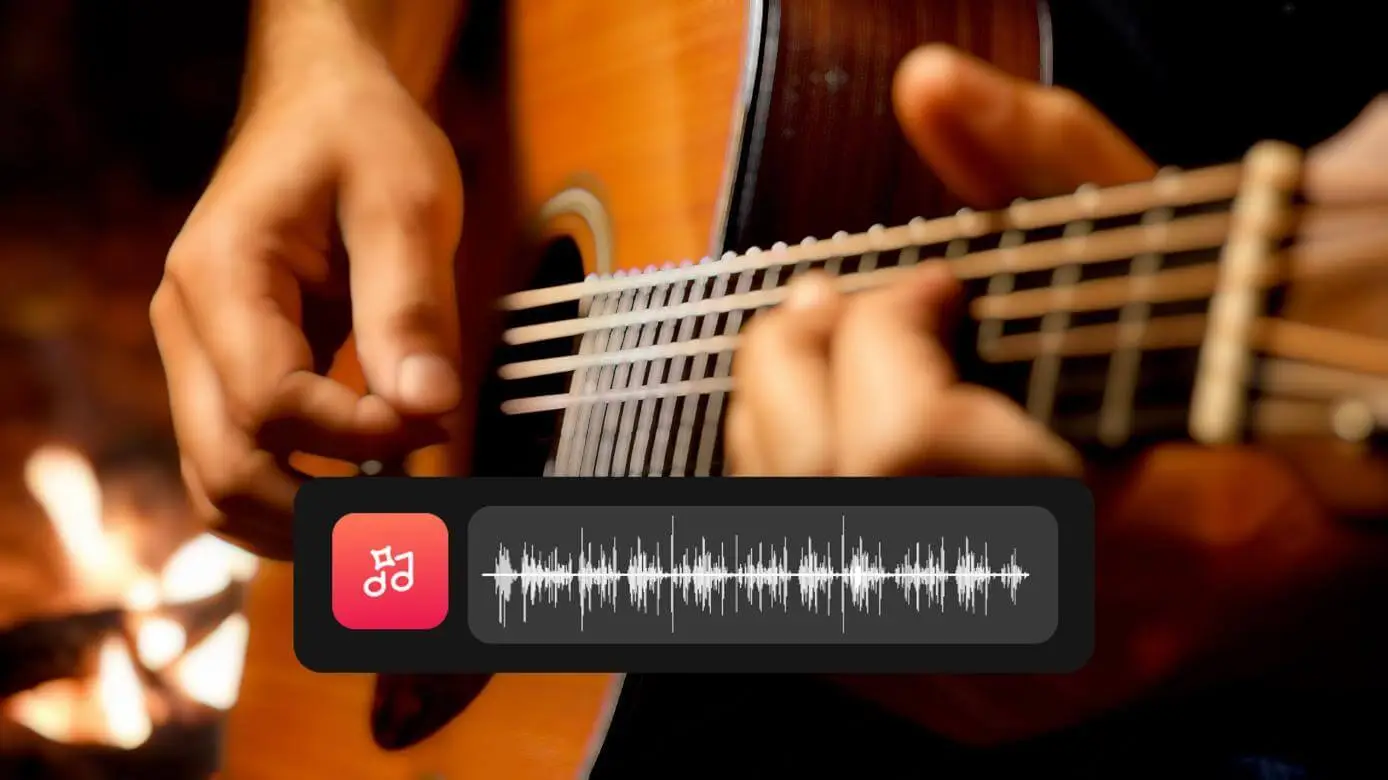
Create music-driven visuals from a song, photo, or creative text prompt.
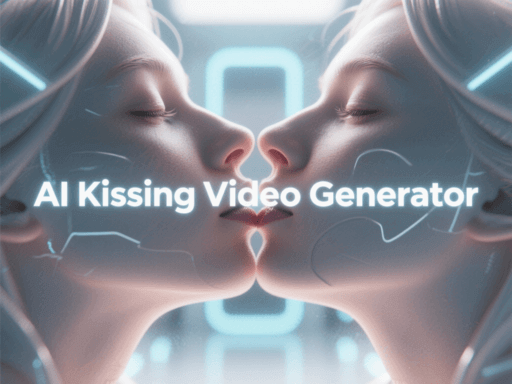
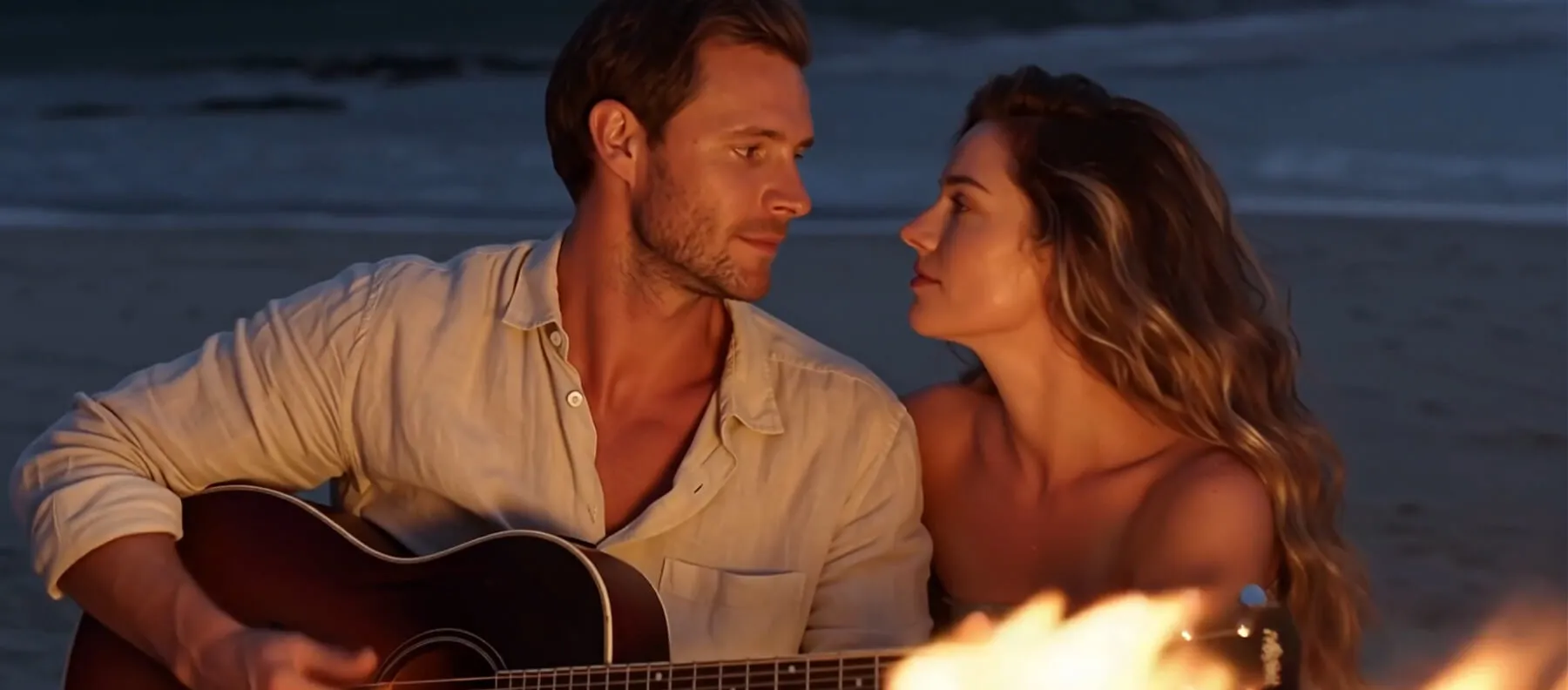
Turn two portraits into a guided AI kissing video with natural-looking motion.
Learn what to upload, which model to choose, how backgrounds and credits work, and when to use Motion Control.
AI motion control recreates the movement from a reference video with the character in your image. Your image provides the character; the video provides the timing, poses, gestures, and body movement.
Upload a JPG, PNG, or WEBP character image up to 100MB. Reference videos must be MP4 or MOV and can be up to 100MB with Kling 3.0 or 200MB with Wan 2.2. For Kling 3.0, images must be at least 300 x 300 px with an aspect ratio between 1:2.5 and 2.5:1, and videos must be 3 to 30 seconds long with each dimension between 340px and 3850px.
Yes. You can animate a person, pet, anime character, illustration, or digital avatar, as long as the subject is clearly visible.
Kling 3.0 offers Standard and High Quality output. Wan 2.2 offers 480p and 720p output, plus Full Scene and Body Only modes.
With Wan 2.2, choose Full Scene to keep the character and background from your image, or Body Only to place your character into the reference video's background. These scene modes are not available with Kling 3.0.
Yes. Registered users can receive free credits to try AI Motion Control. Each generation uses credits based on the selected model, output quality, and reference video length. ChatArt shows the amount before you generate.
Use Motion Control when you want your character to follow a specific dance, gesture, or action from a reference clip. Use Image to Video when you want to animate a still image more freely without matching a specific performance.