




How to Turn a Photo Into a Painting With AI Without Losing Facial Identity

13 mins read
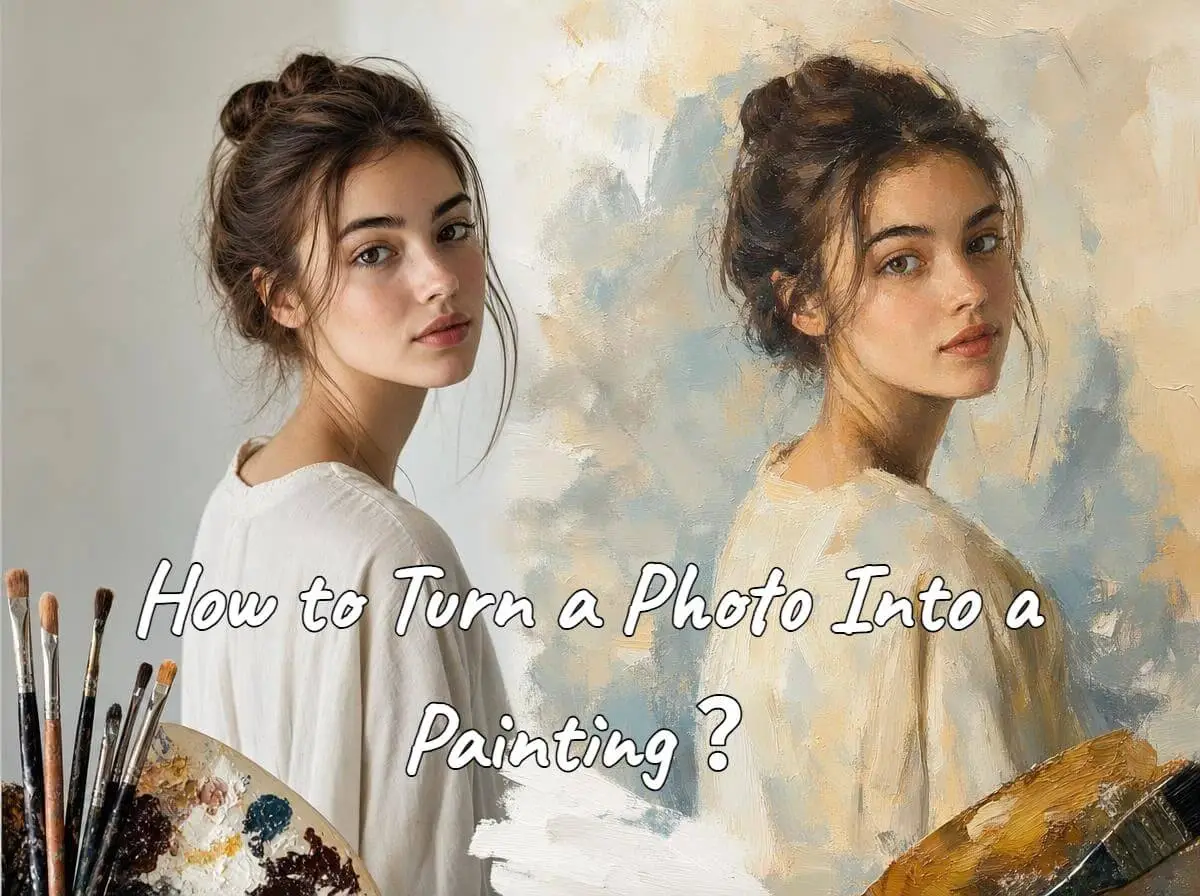
Turning a photo into a painted masterpiece often ends in frustration: the face becomes a stranger, or the result feels like a flat digital overlay. Preserving real facial identity while achieving authentic oil or watercolor depth requires a structured approach to AI prompting. In this article, you’ll master the exact prompt architecture, model settings, and quick fixes needed to turn any photo into museum-grade art—without losing the person behind the portrait.
 Quick Answer: The 3-Step Formula
Upload a High-Detail Source: Use a sharp, well-lit photo as an image-to-image reference.
Describe Physical Texture: Request real-world surface details like thick impasto, visible bristle marks, oil glaze, or watercolor bleed rather than generic words like "artistic."
Fix Drift Instantly: If features alter, lower style intensity or replace vague keywords with positive identity constraints.
In this article:
- 1. Source Photo Selection & Painting Style Guide
- 2. 6-Part Prompt Architecture & 12 Ready Prompts
- 3. Real Scenario: Fixing a Portrait That Looks Like a Filter
- 4. Which AI Model Should You Use for Photo-to-Painting?
- 5. Compare Photo-to-Painting Results in ChatArt
- 6. How to Preserve Facial Identity (Without AI Drift)
- 7. Frequently Asked Questions
1. Source Photo Selection & Painting Style Guide
The quality and framing of your reference image directly impact how accurately generative models read subject identity. Choosing an uncompressed source photo with clear lighting reduces facial distortion during style transfer.
| Criteria | Recommended Approach | What to Avoid |
|---|---|---|
| Clarity & Resolution | Sharp, high-resolution original photos with well-defined eyes and jawline | Low-res screenshots, pixelated images, or heavy social media compression |
| Lighting | Balanced natural light or soft studio directional lighting | Harsh split shadows obscuring half the face, or extreme backlighting |
| Framing | Portraits where the subject's face is central, sharp, and unobstructed | Distant group shots where facial pixels are too low for reference extraction |
| Pre-Processing | Unfiltered photos displaying natural skin contours and facial geometry | Selfies with heavy smoothing filters or digital AR distortions |
Matching Subject Matter to the Right Painting Style
Different painting mediums interact differently with facial details. Selecting an appropriate medium helps balance artistic texture with likeness preservation.
| Style | Best Subject Matter | Likeness Retention Workflow Tendency | Texture Focus |
|---|---|---|---|
| Classic Oil Painting | Solo portraits, headshots, formal wall art | High (retains structure well with fine brushwork on skin) | Glazing, impasto highlights, linen canvas grain |
| Watercolor | Pets, floral studies, outdoor travel photos | Moderate (requires gentler style strength) | Pigment wash, wet-on-wet bleeds, cold-pressed paper |
| Gouache Illustration | Couples, family art, lifestyle portraits | High (uses clean matte color shapes) | Opaque color layers, subtle paper grain |
| Charcoal & Pencil | Dramatic portraits, architectural shots | High (relies on contour and shading accuracy) | Cross-hatching, smudged shadows, heavy paper texture |
| Impressionist Oil | Landscapes, gardens, cityscapes | Moderate (short strokes suit backgrounds best) | Thick impasto, dappled light, broken color strokes |
| Painterly Anime | Avatars, stylized profile art | Moderate (adapts proportions to artistic aesthetic) | Soft cel shading, smooth linework, rim lighting |
2. 6-Part Prompt Architecture & 12 Ready Prompts
To avoid guesswork, structure your prompts using this 6-part framework designed for photo-to-painting workflows across different image generators:
The 6-Part Prompt Architecture[1. REFERENCE ANCHOR] + [2. IDENTITY CONSTRAINTS] + [3. ART MEDIUM] + [4. MATERIAL & TEXTURE] + [5. LIGHTING & COLOR] + [6. COMPOSITION FOCUS]
- 1. Reference Anchor: "Use the uploaded photo as primary visual reference."
- 2. Identity Constraints: "Preserve exact facial likeness, eye shape, expression, and jawline."
- 3. Art Medium: "Repaint as a classical oil painting with subtle brushwork..."
- 4. Material & Texture: "...layered glazes, fine linen canvas grain, and tactile impasto highlights..."
- 5. Lighting & Color: "...illuminated by warm Rembrandt directional studio light."
- 6. Composition Focus: "Keep facial features refined and sharp while applying bolder paint strokes to clothing and background."
12 Ready-to-Use Copy-and-Paste Prompts
1Renaissance Studio Oil (Solo Portrait)

2Contemporary Palette Knife Oil (Solo Portrait)

3Impressionist Oil Headshot

4Matte Gouache Illustration (Couples)

5Nostalgic Heirloom Oil (Family Portrait)

6Soft Impressionist Watercolor (Wedding / Couple)
7Translucent Watercolor Wash (Pets)
8Charcoal & Pastel Fine Art Study (Pets)

9Classical Oil Pet Portrait
10Impressionist Impasto (Travel Landscape)

11Architectural Palette Knife Oil (Cityscapes)
12Painterly Anime Portrait (Avatars)

3. Real Scenario: Fixing a Portrait That Looks Like a Filter
When prompts are too simple, AI generators often default to flat digital overlays rather than genuine painterly textures. Here is a practical prompt iteration workflow demonstrating how to fix this issue:
 First Attempt: Unstructured Prompt
Prompt: Turn this photo into an oil painting.
Result:
- ❌ Face looks slightly altered or smoothed out.
- ❌ Brush texture appears flat and repetitive, resembling a basic digital filter overlay.
- ❌ Background lacks depth and authentic canvas texture.

 Second Attempt: Identity-Anchored Prompt
Prompt: Preserve the primary subject’s original facial proportions, eye shape, gentle smile, hairstyle, and natural gaze toward the person in the foreground. Maintain the warm lighting, candid two-person composition, and shallow depth of field. Repaint the scene as a traditional oil portrait with visible layered brushwork, subtle impasto highlights, and fine linen canvas grain. Keep her facial features refined while applying heavier, more expressive strokes to the clothing, foreground figure, and background.
Result:
- ✅ Strong facial likeness with the original gentle smile and natural gaze preserved.
- ✅ Warm, candid composition retained, including the softly blurred foreground figure.
- ✅ Authentic oil-paint texture with layered brushwork and organic linen canvas grain.

4. Which AI Image Model Should You Use for Photo-to-Painting?
Different generative AI image models handle reference structures and artistic styles according to their specific training architecture and developer capabilities. Rather than looking for a single universal "best" tool, select an engine based on your technical requirements:
| Model / Engine | Official Capability Focus | Recommended Workflow Testing |
|---|---|---|
| FLUX Series(Black Forest Labs) | Specializes in reference-based editing, character consistency, and preserving unedited image regions. | Test for facial structure retention and lighting naturalness when converting portrait photos. |
| Seedream Engine (ByteDance) | Emphasizes reference image consistency, facial feature preservation, and color/style conversion. | Evaluate for painterly texture depth, impasto brushwork, and artistic style transfer. |
| GPT Image Model (OpenAI API) | Features detailed natural language instruction adherence and input_fidelity controls to match reference image features. |
Use for complex, highly detailed prompt instructions requiring specific background adjustments. |
Note: These are workflow-oriented recommendations based on official technical capabilities, not universal quality rankings. Output quality varies depending on prompt structure, source photo quality, model version, and specific generator settings. For changing provider details, consult the official Seedream overview and OpenAI image generation guide.
Real-World Model Test: Photo-to-Painting Comparison
To evaluate how different image generation engines process identical prompts and reference photos, compare test results side-by-side:
Model Test ComparisonBelow is a visual comparison test using a single source portrait photo and identical prompt parameters across leading image engines:

1. Seedream 5.0 Result

2. nano banana

3. GPT Image 2 Result

4. FLUX Result

5. Compare Photo-to-Painting Results in ChatArt
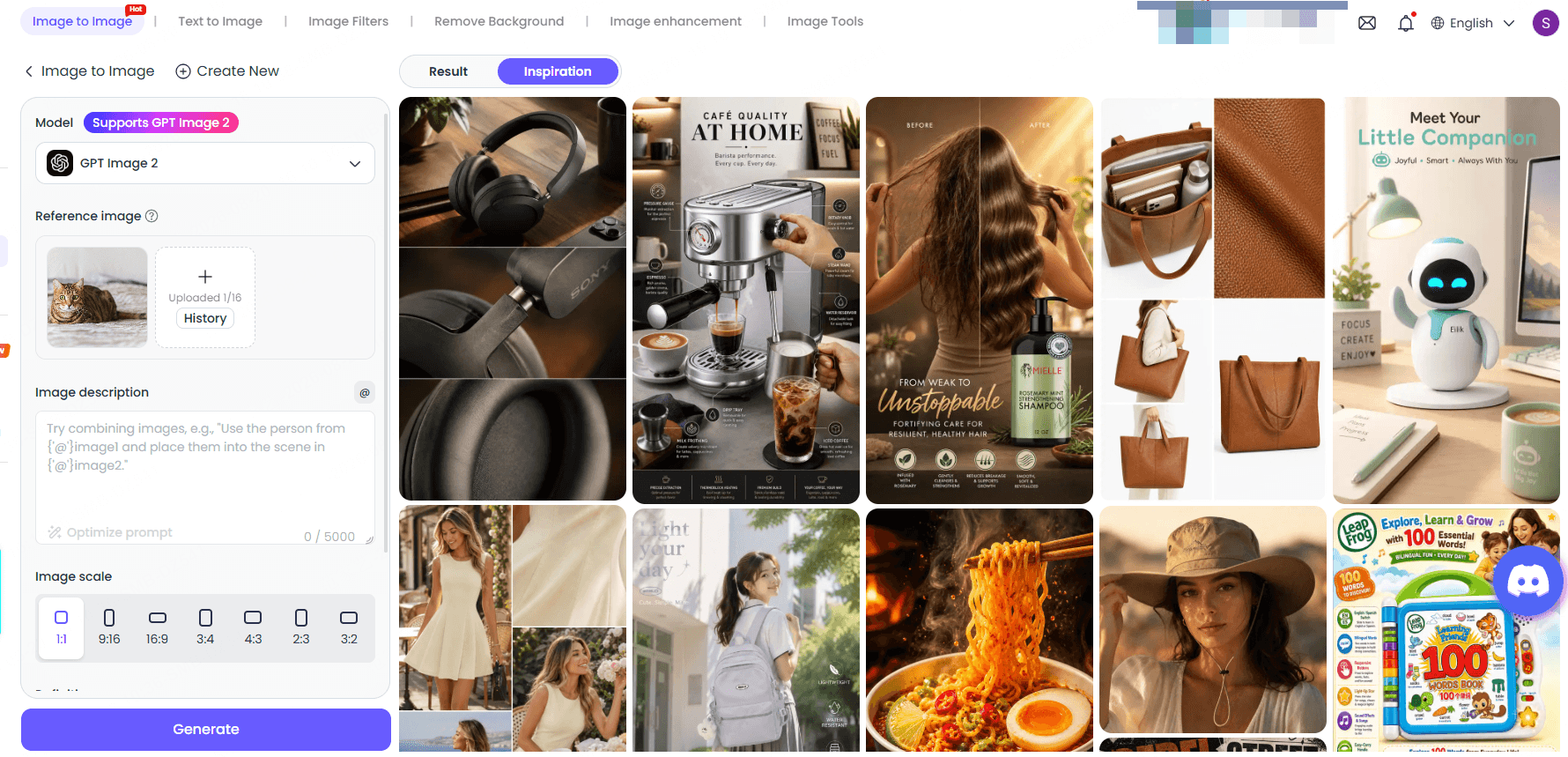
If you are unsure which image model handles your specific reference photo best, you don't have to rebuild your workflow from scratch on multiple platforms. ChatArt allows creators to test different image generation models using the exact same reference photo and prompt setup, making it easy to compare facial likeness, painterly texture, and style rendering in one workspace.

ChatArt - Multi-Model Workspace for AI Photo-to-Painting
- Multi-Engine Comparison: Switch between image generation engines without re-uploading assets.
- Identity Preservation Testing: Evaluate facial likeness retention across different model architectures.
- Streamlined Workflow: Apply structured prompt templates directly to your reference photos.
How to Generate and Compare Models in ChatArt

6. How to Preserve Facial Identity (Without AI Drift)
When generating oil or watercolor art from photos, generative models attempt to balance reference image structure with artistic style descriptions. If style terms overwhelm the prompt, the model may drift away from the original facial likeness.
Use Positive Constraints Instead of Relying Solely on Negative Prompts
Modern generative image models treat prompts differently. Older diffusion workflows relied heavily on negative prompts to suppress unwanted changes. However, newer state-of-the-art architectures (such as GPT) do not use negative prompts at all, responding much better to positive, explicit instructions describing what to keep intact.
❌ Outdated / Vague Approach
Do not alter the face. Do not distort eyes. No blurry features.
Why it fails: Models without negative prompt support ignore these commands, while other models may still prioritize heavy style descriptors over negative phrases.
✅ Positive Identity Constraint Approach
Preserve original facial proportions, eye shape, expression, hairstyle, and jawline structure. Render delicate, refined brushwork across facial skin while concentrating thicker paint textures on clothing and background.
Why it works: It clearly defines structural boundaries and tells the generator where to apply detailed textures versus smooth facial rendering.
Traditional Digital Filter vs. Generative AI Painting
Understanding how generative art differs from classic photo editing helps explain why structural prompting is essential:
| Feature | Traditional Digital Filter | Generative AI Photo-to-Painting |
|---|---|---|
| Pixel Processing | Applies algorithmic pattern overlays directly onto existing pixels | Reconstructs visual elements based on reference images and prompt instructions |
| Facial Structure Preservation | Generally preserves original pixel structure unless explicit warping or geometric editing is applied | Requires explicit identity guidance in the prompt to prevent stylistic drift |
| Paint Texture Realism | Repeated, flat digital canvas overlay | Dynamic brush stroke direction, paint thickness variation, and organic canvas texture |
| Customization | Fixed preset sliders | Full textual control over medium, lighting, brush technique, and artistic mood |
7. Frequently Asked Questions
1Why does AI change my face when turning a photo into a painting?
AI can change a face when the requested style is strong, the source image is unclear, or the image-to-image/reference influence is too weak. Start with a sharp portrait, describe the facial features you want to preserve, and reduce stylization if the face begins to drift.
2How do I turn a photo into an oil painting without losing the face?
To preserve facial identity, place identity-preservation commands at the beginning of your prompt, request refined brushwork on facial features, and keep heavy impasto textures restricted to the background and clothing. Using a high-resolution source photo also ensures accurate feature extraction.
3What is the best AI prompt for turning a photo into a painting?
The best prompt combines reference commands, identity constraints, and physical texture descriptions. Example: Use uploaded photo as visual reference. Preserve exact facial features, eye shape, and expression. Repaint as a classical oil painting with fine linen canvas grain, glazed skin tones, and subtle impasto highlights.
4Why does my AI oil painting look like a filter?
An AI painting looks like a filter when prompts use vague buzzwords (e.g., "artistic," "painting effect") without specifying physical materials. To fix this, describe real physical painting attributes such as layered oil glazes, visible palette knife strokes, tactile impasto paint thickness, and linen canvas texture.
5Can I turn a family photo into a painting?
Yes. When converting family photos, use prompts that explicitly request identity preservation for all subjects: Preserve all facial features, relative height, positioning, and expressions of every person in the uploaded photo. Convert into a warm oil portrait on canvas.
6Can I turn a pet photo into a watercolor painting?
Yes. Translucent watercolor wash works exceptionally well for pets. Specify physical fur markings and eye details: Preserve exact fur patterns, eye color, and snout shape. Render as a watercolor painting on cold-pressed paper with soft wet-on-wet pigment washes.
7How do I make an AI painting look more realistic?
To make an AI painting look realistic, avoid over-saturated colors and digital smoothing. Request natural directional lighting (e.g., warm window light), subtle paint layering, organic surface textures, and balanced contrast.
8Can I print an AI-generated painting on real canvas?
Yes. For printing on large canvas, ensure you generate or upscale your final artwork to a high resolution (300 DPI at full print size). Oil texture and canvas grain descriptors in the prompt help make canvas prints look like genuine hand-painted art.
9Can I turn an old or blurry photo into a painting?
If an old photo is very low-resolution or blurry, generative models may struggle to extract facial details accurately. It is best to pass old photos through a photo enhancement tool first before uploading them for AI photo-to-painting generation.
10Can I use an AI-painted photo as a gift or for commercial projects?
Yes, AI-painted portraits derived from your original photos make popular personalized gifts, wall art, and custom prints. Check your AI generator platform's terms of service regarding commercial usage rights for generated assets.
Conclusion
A convincing AI painting starts with the source photo rather than the style preset. Use a clear image, state the features that must stay recognizable, choose one painting medium, and describe its physical materials. When the face or texture drifts, change one variable at a time so you can identify whether the source, model, or prompt caused the mismatch.
To put this workflow into practice, open ChatArt's AI Image Generator, keep the same source photo and prompt while comparing models, and refine only the largest problem in each round. If the original is faded or damaged, prepare it first with the old photo restoration guide before applying a painting style.
How to Make a TikTok Video: A Complete Step-by-Step Guide
Mastering AI Prompts: Create Breathtaking Couple Kissing Images & Videos
30 Best AI Image Generator Prompts to Copy and Customize

