





How to Make AI Product Videos from Photos: 5 Ideas and Prompts to Try


5 mins read
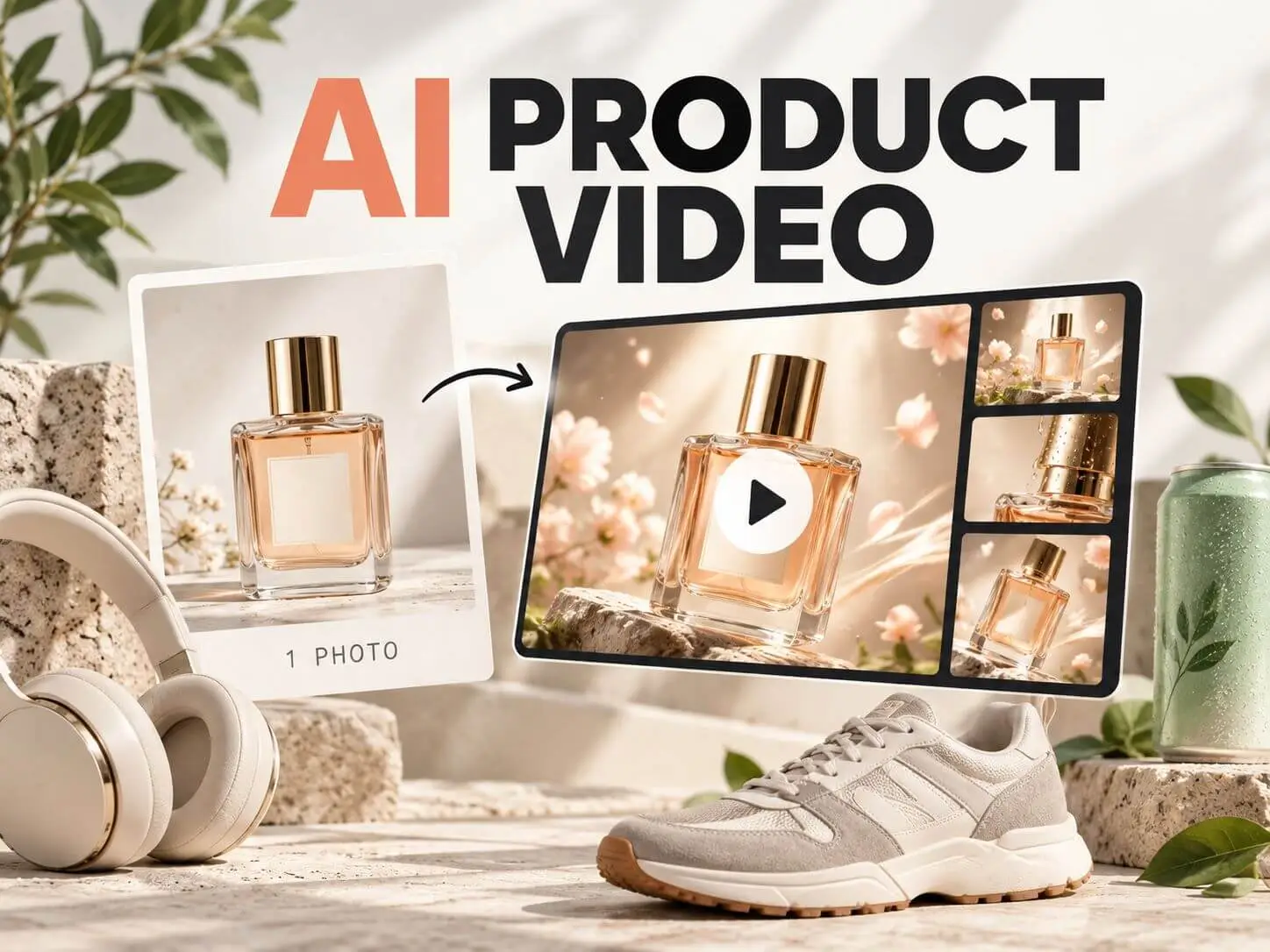
Have a product photo but no footage? You can use AI to create a short product video for a social post, a launch teaser, or an ad draft. The useful question is not how many effects you can add. It is what should a customer notice about the product?
How do you make an AI product video from a photo? Upload a clear product image to an AI video tool, describe the motion you want, and generate a short clip. Review the product details before publishing. With ChatArt, you can create packaging reveals, splash effects, close-ups, and lifestyle videos from product photos.
These five ideas serve different selling goals, from making packaging stand out to creating an attention-grabbing reveal or helping shoppers picture a product in their own space. You will also find copyable prompts, a short ChatArt tutorial, fixes for common generation problems, and a 15-second ad example.
In this article:
- What Can You Make from One Product Photo?
- 5 AI Product Video Ideas Worth Trying
- 1. Beauty Products: Make the Packaging the Hero
- 2. Drinks: Stop the Scroll with a Splash
- 3. Electronics: Put One Detail in Focus
- 4. Shoes and Accessories: Give the Silhouette a Fashion Entrance
- 5. Home and Lifestyle: Build a Scene Around the Product
- How to Make an AI Product Video with ChatArt
- How to Edit and Publish Your AI Product Video
- Frequently Asked Questions
- Conclusion
What Can You Make from One Product Photo?
One clear photo is enough to try a product reveal, subtle camera move, or animated background. It is much less reliable for showing the hidden side of an object or proving how something works. If you need a demonstration of a real feature, use actual footage.
| Your goal | Try this | Check before using |
|---|---|---|
| Show packaging | Slow camera push or moving light | Logo, colors, and label text |
| Catch attention in an ad | Movement around a mostly still product | Product stays visible in the opening seconds |
| Show a new angle | Use a reference photo from that angle | Invented details on surfaces not shown in the photo |
| Demonstrate a feature | Use a real demonstration clip | Actual function and performance claims |
Start with a sharp, uncropped photo that shows the details you want to keep. If your source image needs a better setting, explore these AI product photography ideas first. The five prompts below are starting points you can adapt to your own product. Results vary by source photo, prompt, and video model.
5 AI Product Video Ideas Worth Trying
Different products need different types of motion. A perfume bottle needs a readable label, a drink can benefit from an energetic hook, and a pair of sneakers may sell better through its silhouette. Choose the idea that matches what you want the viewer to notice, then replace the words in [brackets].
1Beauty Products: Make the Packaging the Hero
For skincare and perfume, the first job is simple: make the packaging look worth a closer look. Instead of spinning the bottle, reveal its front label with a controlled change in light. This works well as a launch teaser or the opening shot on a product page.
Copyable prompt:
2Drinks: Stop the Scroll with a Splash
A drinks ad often needs an instant visual hook. Here, the action happens around the can rather than on it: a quick splash or condensation burst creates energy while the packaging stays recognizable. This is a better fit for a social feed than a slow studio reveal.
Copyable prompt:
3Electronics: Put One Detail in Focus
For a headset, watch, or controller, one physical detail can do more selling than a dramatic effect. Use a tight close-up of something actually visible in your photo, such as a dial, stitched ear cushion, or brushed-metal finish. The goal is to help the buyer notice build quality, not to simulate a feature test.
Copyable prompt:
4Shoes and Accessories: Give the Silhouette a Fashion Entrance
Shoes, bags, and accessories often sell through their outline. Give the item a fashion-style entrance instead of another close-up: a sneaker slides into the middle of a clean set, then pauses long enough for the silhouette to register. This is a strong opening for a collection drop or social teaser.
Copyable prompt:
5Home and Lifestyle: Build a Scene Around the Product
A home product needs a different answer: where would this fit in my space? Start with the product in a believable room, then let the styling build around it. The scene tells a small story without pretending to demonstrate what the product can do.
Copyable prompt:
How to Make an AI Product Video with ChatArt
To make an AI product video in ChatArt, upload one photo, describe the motion, and generate. You can reuse any of the five prompts above. For a simple photo animation outside Product Shot, you can also try the image-to-video tool.
1Open Product Shot in ChatArt
Open Product Shot in ChatArt and choose Video.

2Upload Your Photo and Describe the Scene
Upload your product image, then paste an adapted prompt into Creative idea. Keep the focus on the movement you want and the product detail you need to preserve.

3Generate and Check the Product
Click Generate, watch the whole clip, and compare the result with your source photo. If something looks wrong, use the targeted fixes below before generating another version.
How to Fix Common AI Product Video Problems
A failed generation does not always need a longer prompt. First, identify what changed that should not have changed. Then revise just the motion or scene instruction that caused the problem.
| What went wrong | Change your prompt to this | If it still happens |
|---|---|---|
| The bottle, shoe, or bag changes shape | "Keep the photographed product completely still in its original front or side view. Animate only the background behind it. No rotation or stretching." | Remove the product entrance or camera move. Use a static product shot with moving light or scenery. |
| The splash floats or covers the label | "One small splash starts behind the base, arcs up along the right edge, then falls downward under gravity. Keep all droplets behind the label." | Reduce the splash size and use fewer droplets. Avoid stacking fruit, ice, and liquid effects. |
| The camera reveals a made-up back or extra buttons | "Stay within the exact angle and surfaces visible in the uploaded photo. Use a close crop only. No orbit, full rotation, or invented components." | Use a separate real reference photo for the missing angle or detail. |
| Logo or package lettering becomes unreadable | "Hold a fixed front-facing packshot, with no movement across the printed label. Let the background change instead." | Use your original product image as the final frame and add accurate text or a logo in editing. |
| A lifestyle scene changes the product's size or color | "Keep the product at its original placement, scale, and color. Move only one background prop. Do not touch or resize the product." | Use an existing lifestyle photo as reference, or simplify the set to one surface and one prop. |
Try changing one instruction at a time. If the bottle is accurate but the liquid looks wrong, adjust only the splash. If the camera creates details you never photographed, remove the orbit rather than rewriting the entire scene.
How to Edit and Publish Your AI Product Video
Once you have clips that accurately show your product, the next step is to make them useful for your audience. Choose a short ad, a social post, or a product-page video, then edit the shots to fit where people will watch them.
Build a 15-Second Product Ad
For a short drinks ad, use four separate shots to catch attention, show the product, highlight a real detail, and finish with a clear next step. Add the on-screen text in a video editor rather than asking AI to generate it inside the footage.
| Timing | Video shot | Text on screen |
|---|---|---|
| 0 to 3 seconds | A single quick splash behind the can grabs attention | "Meet [Product Name]" |
| 3 to 7 seconds | Cut to a clean front-facing shot so the packaging is easy to see | "[Verified flavor or product type]" |
| 7 to 11 seconds | Show a real visible detail, such as the can texture or an actual ingredient pictured on the package | "[One accurate product detail]" |
| 11 to 15 seconds | Hold a steady product frame with enough empty space for a call to action | "Shop [Brand]" |
Adjust the sequence to your goal. For a new launch, spend more time on the visual hook and product name. For a detail-focused ad, replace the splash with a close-up of the real feature buyers care about. For a product-page video, lead with a clear packshot and let viewers examine the item before showing creative effects.
In your editor, trim each generated clip to its strongest few seconds and use straightforward cuts so the ad feels intentional. Keep the same product colors and visual style across shots. Add captions, prices, offers, logos, and your call to action as editable layers. Use only verified product facts, and check that music and other assets are licensed for your intended use.
Choose the Right Format for TikTok, Reels, and Shopify
Choose the destination before you generate or crop your clip. A video that feels natural in a vertical social feed may be less helpful on a product detail page.
| Where you will use it | What to prioritize | Practical setup |
|---|---|---|
| TikTok product video | Recognizable product and one attention-grabbing movement in the opening seconds | Plan for vertical 9:16, and keep packaging and captions away from the screen edges |
| Instagram Reels | A clear reveal or lifestyle scene that makes sense even before the viewer reads the caption | Use a vertical 9:16 composition and leave space for the Reels interface |
| Shopify product page | True-to-life color, packaging, texture, and product visibility | Match your store theme and media placement; Shopify does not require one universal video aspect ratio |
Set the aspect ratio or duration in your video tool when those options are available; typing 9:16 or 10 seconds into a prompt cannot guarantee the export settings. Check the latest TikTok ad specifications, Meta Reels guidance, or Shopify product video requirements before publishing.
What to Check Before Publishing
Does it still match what you sell? Watch the whole clip and compare the label, color, silhouette, and small design details with the source photo. Small errors can appear only after the camera starts moving.
Can someone identify the product immediately? If effects cover the packaging or the background steals attention, simplify the prompt and use less motion.
Is the claim real? A generated scene can suggest a mood, but it cannot verify performance. Use real evidence for demonstrations, measurable benefits, and specifications.
Frequently Asked Questions
Can I make a product video with just one photo?
Yes. One clear photo can be enough to explore a simple animated product shot. For another angle, working mechanism, or exact detail that is not visible, use real reference material or footage.
Can AI keep my product logo and packaging accurate?
Not always. Generated frames can alter small print, logos, colors, and fine details. Compare the whole clip with the source photo and add important promotional text in an editor.
Do I need to pay to generate AI product videos?
Generation options and charges may vary by model and account. Check the available settings and any displayed cost in ChatArt before generating.
What is the best aspect ratio for an AI product video?
For TikTok and Instagram Reels, vertical 9:16 is a useful starting point. For a Shopify product page, use the dimensions and crop that fit your theme and product media area. Choose the output format in the tool when possible rather than relying on prompt text.
Can I post an AI product video as an ad?
You can use AI clips as creative material, but review the usage terms for your chosen tool or model, check the destination platform's rules, and make sure the visuals do not misrepresent the product.
Conclusion: Start with One Clear Selling Goal
A strong AI product video does not need five effects at once. Use a packaging reveal to build trust, a splash to catch attention, a close-up to show craftsmanship, a clean entrance to sell a silhouette, or a lifestyle scene to help shoppers picture the product at home. Each has a different job, so choose the one that fits your audience and where the video will appear.
For your first attempt, pick one sharp photo and one idea. Generate a short clip, check it against the real product, and fix any distracting changes before adding captions or an offer. When you are ready, open ChatArt Marketing Studio, upload your product photo, and try the prompt that matches your goal.
AI Product Photography: 12 Creative Ideas & Copyable Prompts

Unlimited AI Story Generator - Create Romantic Stories Free
Higgsfield Genjutsu Tutorial: Repurpose Performance Footage

