





Higgsfield Genjutsu Tutorial: Repurpose Performance Footage


4 mins read
Re-shooting video campaigns every time you change a brand model, wardrobe, or background can burn through budget fast. Traditional text-to-video AI tools promise quick fixes, but they often struggle to keep exact human movements and camera angles consistent.
Higgsfield Genjutsu solves this by letting you repurpose existing footage. Instead of generating random clips from scratch, you can transform the subject, outfit, or scene while preserving the core choreography and camera path.
In this practical guide, we will break down how Genjutsu works, when to use Motion Transfer vs. Object Swap, its actual credit costs, and how to verify output quality before rendering.
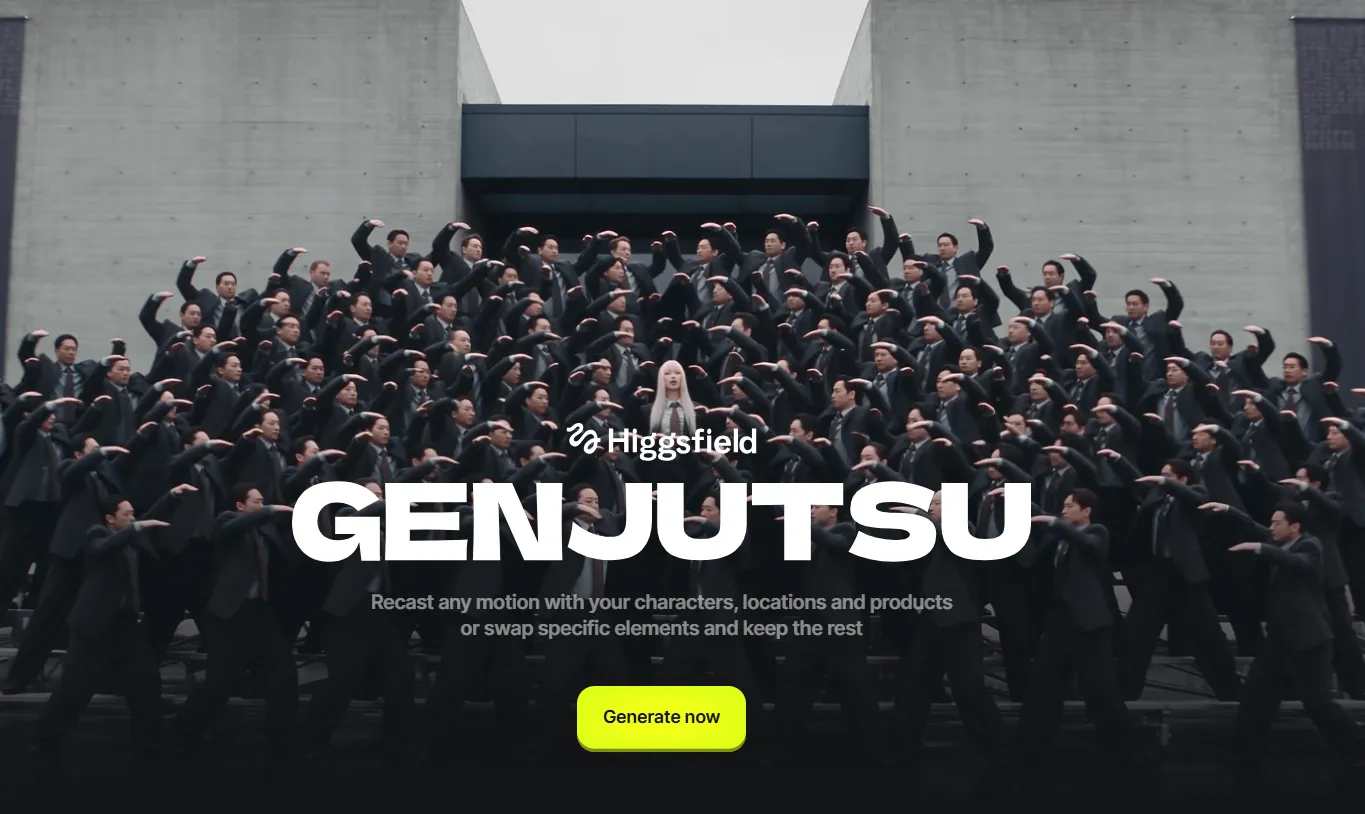
Table of Contents
- What Is Higgsfield Genjutsu?
- Motion Transfer vs. Object Swap: Which Should You Use?
- Step-by-Step Tutorial: How to Set Up Your First Transformation
- Quality Checklist: What to Look For Before Exporting
- Pricing and Credits Explained
- What If You Don't Have a Performance Video Ready?
- Frequently Asked Questions (FAQs)
- Final Takeaway
What Is Higgsfield Genjutsu?
Higgsfield Genjutsu is a video-to-video editing tool that uses an existing clip, optional reference images, and presets or short prompts to change characters, objects, or visual style.
Instead of relying purely on long text prompts, Genjutsu uses your source footage as a structural blueprint. You upload a video, add reference images for your new subject or environment, and let the tool re-render the visual world around the original movement.

Key Technical Specifications
- Input Video Length: Supports 1 source clip between 4 and 30 seconds.
- Reference Photos: Upload up to 30 reference images per render to guide character faces, clothing, products, or locations.
- Presets & Prompts: Includes 30+ built-in visual presets. Text prompts are optional and typically kept short.
- Output Resolution: Renders up to 1080p.
- Genjutsu Restyle: An option within the workflow for applying broad artistic styles across the clip.
Motion Transfer vs. Object Swap: Which Should You Use?
Choosing the right mode depends on how much of the original shot you want to change:
| Feature | Best For | What It Rebuilds | What It Retains |
|---|---|---|---|
| Motion Transfer | Rebuilding a shot around existing movement | Character identity, wardrobe, environment, overall visual style | Original body choreography, timing, camera trajectory, framing |
| Object Swap | Making targeted replacements | Selected person, specific clothing item, product package, background prop | Unchanged background elements, non-targeted subjects, lighting direction |
1. Motion Transfer
Choose Motion Transfer when you want to use the camera path and performance of an existing video—such as a dance routine—to drive a new character or place them in a new environment.
2. Object Swap
Choose Object Swap when the overall shot works well, but you need to swap out one specific element, such as changing a clothing item or a background prop while keeping the rest of the scene intact.
Step-by-Step Tutorial: How to Set Up Your First Transformation
Let's look at a common creator setup: adapting a 10-second street dance video into a 3D animated character performing in a studio.
Step 1Select Your Workflow
Select Motion Transfer if you want to replace both the character and the background while preserving the original choreography.

Step 2Prepare Your Assets
- Source Clip: A clear 10-second video with distinct body movement.
- Reference Images: A front-facing character design and a background environment image.
Source video + character reference + environment reference → generated video
If you still need reference assets, use ChatArt Text to Image to create a character or studio concept, or ChatArt Image to Image to edit an existing reference. Check the result for a clear face, consistent clothing, and the viewing angle you need before uploading it to Genjutsu.
Step 3Add Transformation Instructions
Select a matching style preset or type a brief direction:

Step 4Render and Review
Consider running a draft at a lower resolution (480p or 720p) first to check how well the motion tracks before generating a 1080p final render.
Pro-Tips: How to Avoid Wasting Credits on Bad Renders
Before paying for a final render, pay particular attention to fast hand movements, crossing limbs, rapid camera pans, and harsh directional lighting. These are useful stress points to inspect for tracking, identity, and shadow inconsistencies.
Use this workflow to catch problems early and keep repeat-generation costs under control:
- Run a Draft First: Start at 480p or 720p to check motion tracking and frame alignment before committing to a 1080p final render. For a 15-second clip, Higgsfield's published examples are about 40 credits / $2.00 at 480p and 104 credits / $5.20 at 720p; review the current estimate before generating.
- Use Structured, Action-Oriented Prompts: Keep text input brief and focused on what should change and what should remain. For example:
"Replace main character with Character Reference 1. Change background to Studio Reference 2. Preserve original body language, camera angle, and lighting direction."
Use reference names or descriptions that match the assets you uploaded.
- Isolate Problem Areas: If a face warps during a sudden turn, try a character reference with a viewing angle closer to that part of the source video. Change one input at a time, then compare the next draft with the original before spending more credits.
Quality Checklist: What to Look For Before Exporting
AI video-to-video outputs can sometimes introduce visual glitches. Before keeping your result, review your clip against this checklist:
- Face Stability: Check if the character's face morphs or shifts identity during quick turns or sudden camera pans.
- Limb & Occlusion Tracking: Inspect fingers, hands, and legs when the character crosses their arms or walks behind an object.
- Ground Contact: Verify that the character's feet rest naturally on the floor instead of floating over the new background.
- Lighting Sync: Make sure the shadows on your new character match the light direction of the revised scene.
Pricing and Credits Explained
Creating an account and exploring community templates on Higgsfield is free, but generating videos with Genjutsu requires prepaid credits.
Pricing depends on output resolution and duration. Below are official pricing examples published in Higgsfield's Official Blog for a 15-second clip:
- 15 seconds @ 480p: ~40 credits (approx. $2.00)
- 15 seconds @ 720p: ~104 credits (approx. $5.20)
- 15 seconds @ 1080p: ~144 credits (approx. $7.20)
Note
Note: Credit deduction rates can change with model updates and custom generation settings. Always check the exact credit cost displayed next to the generate button before rendering.
💡 ROI Analysis: Genjutsu vs. Traditional Reshoots
To assess the value of a 15-second visual update, compare your actual reshoot quote with the full cost of producing an acceptable AI variation:
Traditional Reshoot Cost: Include model fees, studio rental, lighting crew, and post-production editing. A $500–$2,000 budget per variation can be used as an illustrative planning scenario, not an industry-wide price estimate. Use a supplier quote and the team's actual schedule for your comparison.
Genjutsu Re-render Cost: Using the published 15-second pricing examples above, one 1080p generation is approximately $7.20. Three 480p drafts plus one 1080p final render total approximately $13.20 in generation costs. Three 720p drafts plus that final render would cost approximately $22.80, so staying under $20 depends on the draft resolution and number of attempts.
Against a hypothetical $500 reshoot quote, $13.20 in generation charges is about 97% lower. This compares generation charges with a reshoot quote, not total production costs: add reference preparation, review, editing, and any further retries before calculating savings. Generation and review time vary, so plan around the actual queue and the time needed to approve a usable result.
For e-commerce brands updating seasonal wardrobes or marketing teams creating localized ad variations, the practical benefit is reusing approved performance footage. Test one representative shot first, then use its accepted-output cost to decide whether the workflow makes sense for the rest of the campaign.
What If You Don't Have a Performance Video Ready?
Video-to-video tools like Genjutsu require a pre-filmed video as a base. If your starting asset is a static picture, you don't need to shoot a new video first.
Depending on your starting assets, you can explore ChatArt to fit your creative workflow:
Use ChatArt Image to Video to animate a standalone static picture using simple text prompts.
Use ChatArt Motion Control when you want to drive a static character image using a separate reference performance video.
For a walkthrough starting from a single still image, see our guide on how to animate a photo with AI.

Frequently Asked Questions (FAQs)
Q1: Is Higgsfield Genjutsu free to use?
Genjutsu operates on a credit system. While signing up and browsing templates is free, generating clips requires credits. Check your account dashboard for promotional offers or trial credits, and always review the render cost upfront.
Q2: Do I need to write complex prompts for Genjutsu?
No. Genjutsu relies mostly on visual reference images and built-in presets. Text directions are optional and should be kept brief and focused only on what needs changing.
Q3: What is the maximum video length I can upload?
Higgsfield supports source video inputs between 4 and 30 seconds for a single Genjutsu generation.
Q4: Can I use Genjutsu videos for commercial campaigns?
Commercial usage rights depend on platform licensing. Always consult Higgsfield’s Terms of Use Agreement and ensure you have proper permissions for any uploaded reference photos before publishing commercial ads.
Final Takeaway
Higgsfield Genjutsu provides a practical workflow for creators and marketers looking to adapt existing video choreography into new characters and environments. By understanding how to apply Motion Transfer and Object Swap, you can efficiently generate multiple creative variations from a single source shot.

6 Gemini Prompts for Professional Photos and LinkedIn Headshots
AI Image Generator That Lets You Create Freely
Explore AI Video Generators – No Hassle, Just Create in 2026

